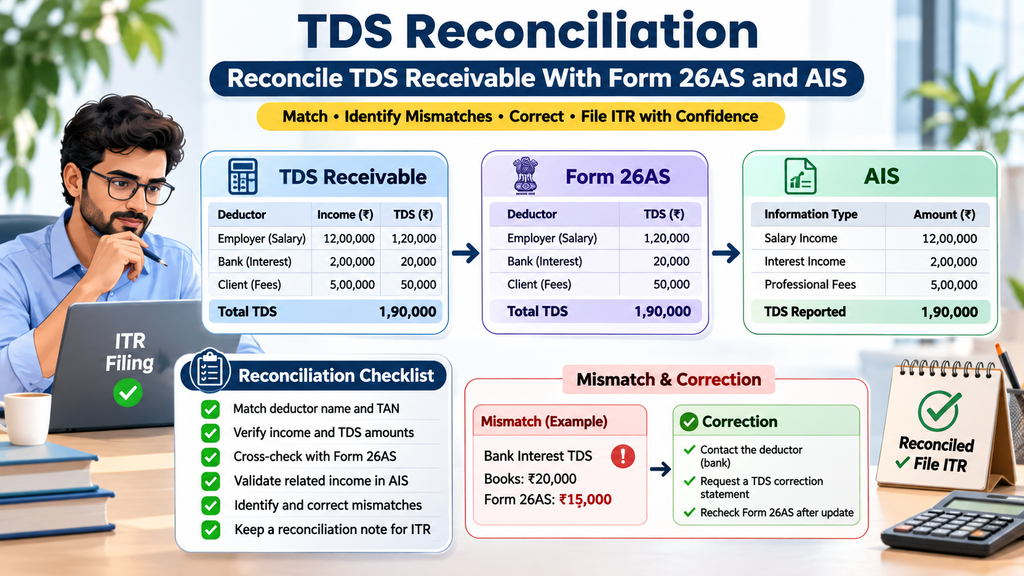
TDS reconciliation with Form 26AS and AIS helps taxpayers identify tax credit mismatches, verify reported income and avoid unnecessary income tax notices before filing their returns.
Every year, taxpayers rush to file their returns and then receive a notice about a mismatch. The cause is usually a small gap between the TDS in their books and the TDS the department can see. A little reconciliation before you file avoids most of this trouble.
Image: https://share.google/images/Os82egRT10kdPYEay
TDS reconciliation
TDS receivable is the tax others have already deducted from your income, such as salary, interest, rent or professional fees. You can claim it as credit only if it appears against your PAN. Form 26AS is the department’s record of that credit. Your return should agree with it, and with what your Annual Information Statement shows.
Read our guide on Form 16 and TDS credit to understand how to verify tax deductions and claim eligible TDS while filing your income tax return.
Step 1: Download both documents
Log in to the income tax portal and open Form 26AS from the e-File menu. Download your AIS from the same portal, along with the Taxpayer Information Summary (TIS), which condenses it. Keep your Form 16, bank interest certificates and Form 16A handy too.
Step 2: List your own TDS first
Before looking at the portal, prepare your own list. Note each deductor’s name, TAN, the income, and the TDS amount from your certificates. This is your TDS receivable as you understand it.
Step 3: Match it against Form 26AS
Go deductor by deductor. Check that the TAN, the amount paid and the tax deducted agree. If a deduction is missing, the deductor may not have filed their TDS return yet, or may have quoted the wrong PAN. Also remember that credit appears only after the deductor files the quarterly statement, so a late filer can delay your credit.
Step 4: Move on to AIS reconciliation
This is where many people stop too early. AIS reconciliation goes beyond TDS. AIS also lists savings account interest, dividends, mutual fund and share transactions, rent received and high-value purchases. Compare each entry with your records. An item you forgot, such as a small FD interest amount, can trigger a notice later even if your TDS matches perfectly.
Step 5: Fix what doesn’t match
AIS lets you give feedback on any entry. You can mark it as incorrect, duplicate or not your income, and attach a reason. For TDS mismatches in Form 26AS, ask the deductor to file a correction statement. Keep emails and proof of your follow-up.
Step 6: Check the timing of income
TDS credit is generally claimed in the year the related income is taxable, even if the deduction shows up in a different year. Interest accrued but not yet paid is a common example. If the years differ, note the reason, because the figures may not agree on the surface but still be correct.
Step 7: File with a reconciliation note
Once everything matches or is explained, file your return. Save a short worksheet showing your TDS, the 26AS figure and the AIS figure, with notes on any differences. If a query arrives months later, you will have the answer ready.
Final Thought
Reconciliation takes an hour or two, and it protects you from delayed refunds, reduced credit and avoidable notices. Treat Form 26AS and AIS as a checklist rather than an afterthought, and your filing will go much more smoothly.
- Income Tax e-Filing Portal – Download Form 26AS, AIS and TIS, and file income tax returns.
- Annual Information Statement (AIS) – Review income information and submit feedback on discrepancies.
- TRACES Portal – TDS certificates, tax deduction records and related services.
- Income Tax Department – Income-tax provisions, rules and guidance on TDS credit.
- Protean Tax Services – TDS-related information and taxpayer services.